SharePoint Site Script To Provision Calendar List And Add Attendees Column
In this article, we will learn how to provision calendar list with site design and site script concept and using this how to add Attendees site column to list. If you want to know the basics of site design and site script I would recommended you to read below links which will help you understand basic concept around site design and scripts.
We would be handling here one advanced scenario and it will cover the below use cases using site design and site script.
- How to create custom content type
- How to add site column to custom content type
- How to create Calendar list.
- How to add custom content type to Calendar list(this can be added to any list)
- How to remove default Event content type from Calendar list.
Pre-requisites
- First thing you would need is SharePoint Online management shell. In case you don’t have installed, use this link to download.
- You would need SharePoint Admin credentials to add Site design to your tenant.
If you have go through the above links or already know about site design and site script, you will already be aware that we need to create site script as json file. Create a json file using your favourite editor.
Add below code to your .json file.
{
    "$schema": "https://developer.microsoft.com/json-schemas/sp/site-design-script-actions.schema.json",
    "actions": [
      {
        "verb": "createContentType",
        "name": "Custom Event",
        "description": "Custom event content type",
        "parentName": "Event",
        "hidden": false,
        "subactions":
        [
            {
                "verb": "addSiteColumn",
                "internalName": "ParticipantsPicker",
                "addToDefaultView": true
            }
        ]
    },
      {
        "verb": "createSPList",
        "listName": "My Calendar",
        "templateType": 106,
        "subactions": [
          {
            "verb": "SetDescription",
            "description": "Meetings calendar list for project management site"
          },
          {
            "verb": "addContentType",
            "name": "Custom Event"
          },
          {
            "verb": "removeContentType",
            "name": "Event"
         }
        ]
      }

    ],
    "version": 1
  }
The idea here is to add Attendees site column to calendar list and add this to default content type. As we cannot directly add site columns to existing content type, we will create a custom content type with base as ‘Event’ content type and then remove ‘Event’ content type from Calendar list.
Please note here InternalColumn name of Attendees site column is ‘ParticipantsPicker‘
Above json is self explanatory, we are first creating custom content type with name ‘Custom Event’, and adding site column ‘ParticipantsPicker’ to this content type. Next action is to create SP List, and we are setting templateType as 106 which is template ID of Calendar list. Then we are adding our custom Content type and remove ‘Event’ content type.
Once we have script ready, let us start deployment on tenant.
First let us connect to our SharePoint Admin management url.
$adminUPN="[email protected]"
$orgName="warnerbrothers"
$userCredential = Get-Credential -UserName $adminUPN -Message "Type the password."
Connect-SPOService -Url https://warnerbrothers-admin.sharepoint.com -Credential $userCredential
This will ask you password in window, once connected we would be able to run any powershell commands.
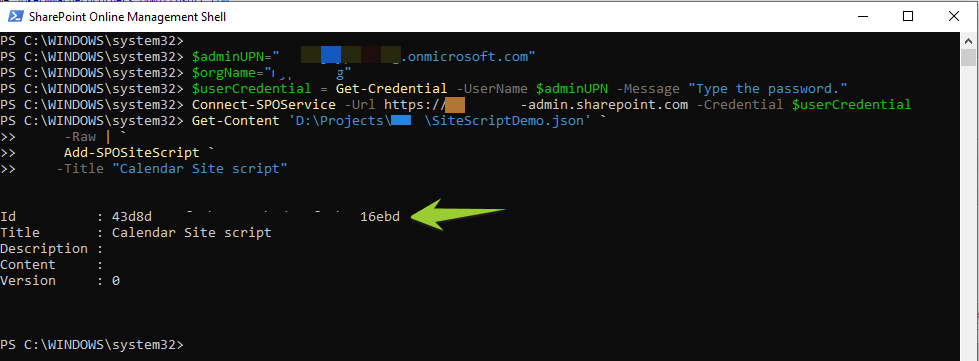
Then lets us add our site script to tenant, run below command in management shell
Get-Content 'D:\Projects\samples\SiteScriptDemo.json' `
     -Raw | `
     Add-SPOSiteScript `
    -Title "Calendar provision Site script"
Once we run this, it will give below output, we need to copy site script id which will be used later.
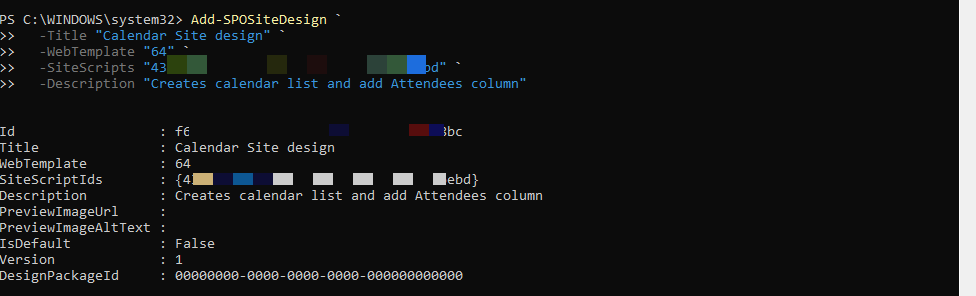
Next thing to do is associate site script with site design, and run the below command. Please change GUID with output of above step.
- Add-SPOSiteDesign `
- -Title “Calendar Site design” `
- -WebTemplate “64” `
- -SiteScripts “42d2d3c4-f51b-47c2-bda3-9ef2qcc16ehd” `
- -Description “Creates calendar list and add Attendees column”
Now we have out site design added to tenant, let us create a new SharePoint site collection and apply our site design to see output.
Go to SharePoint admin center
https://warnerbrothers-admin.sharepoint.com/_layouts/15/online/AdminHome.aspx#/home
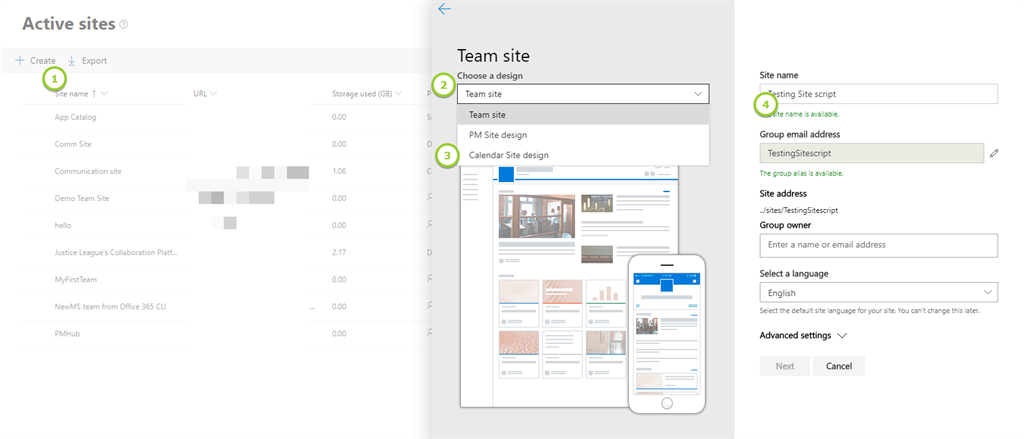
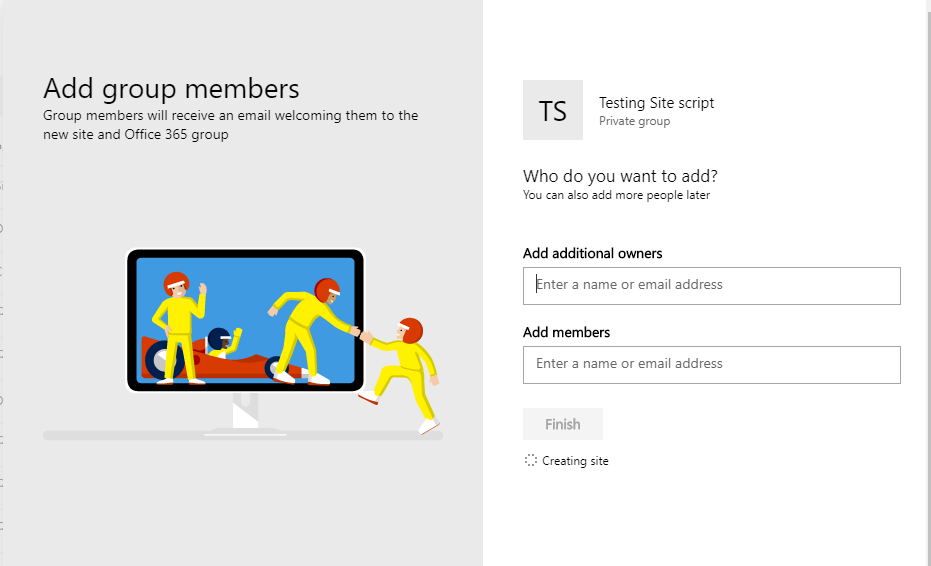
Once finished, browse the new site collection which is created, we should see new calendar list provisioned with Attendees column. We will see output in the below alternative way to apply site design.
Note
You can also choose to apply site design to existing site collection. Go to exisiting site collection, click on Gear icon on header, click on Site design.
You can also choose to apply site design to existing site collection. Go to exisiting site collection, click on Gear icon on header, click on Site design.
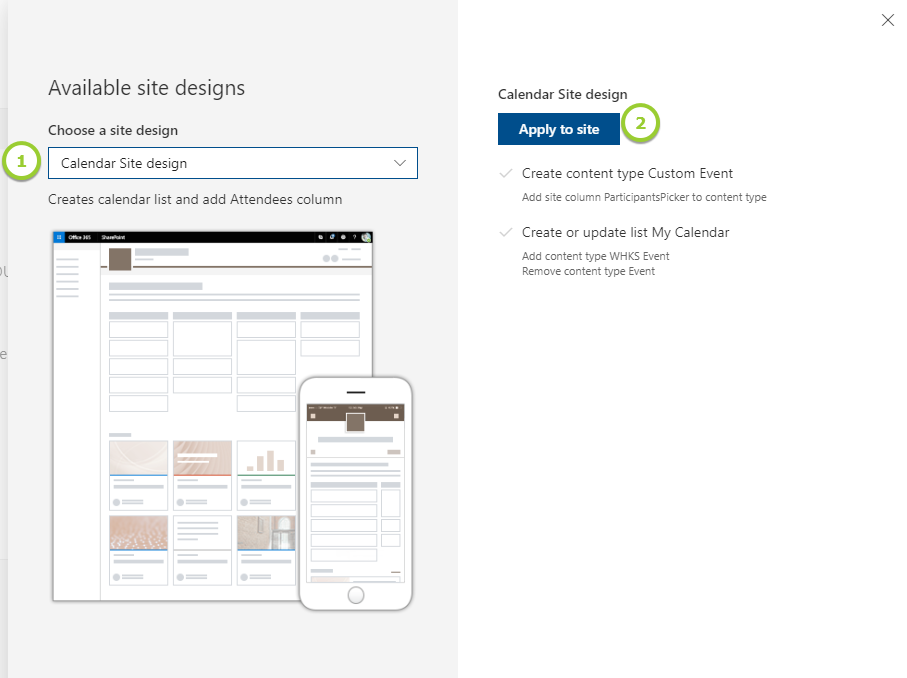
Clicking on Apply, it will start applying our actions as below
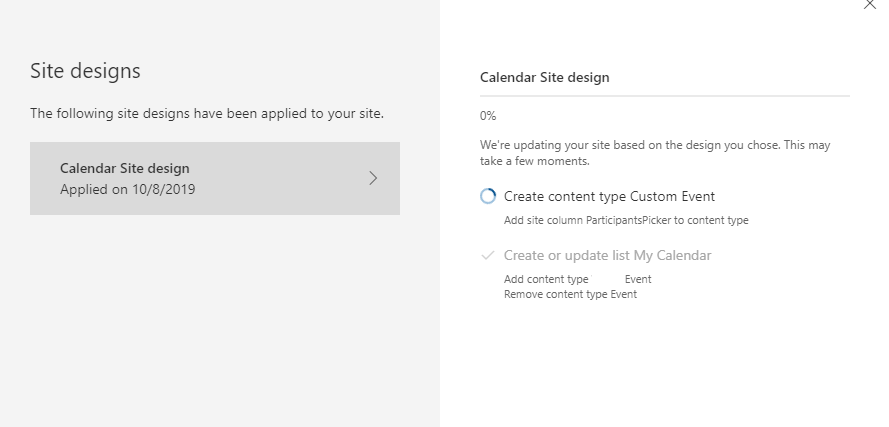
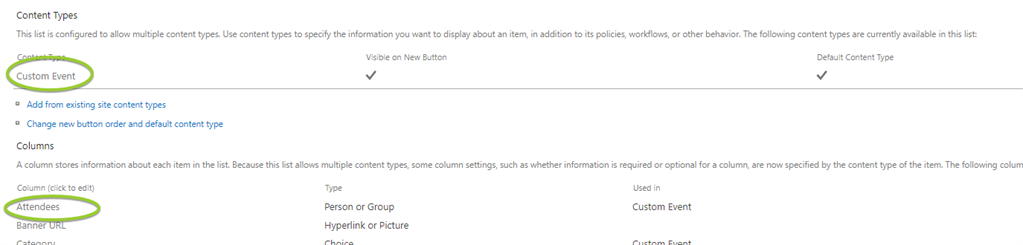
Once finished, refresh the site and go to Site contents. We can see ‘My calendar’ list created. Go to list setting to check if content types are created correctly.
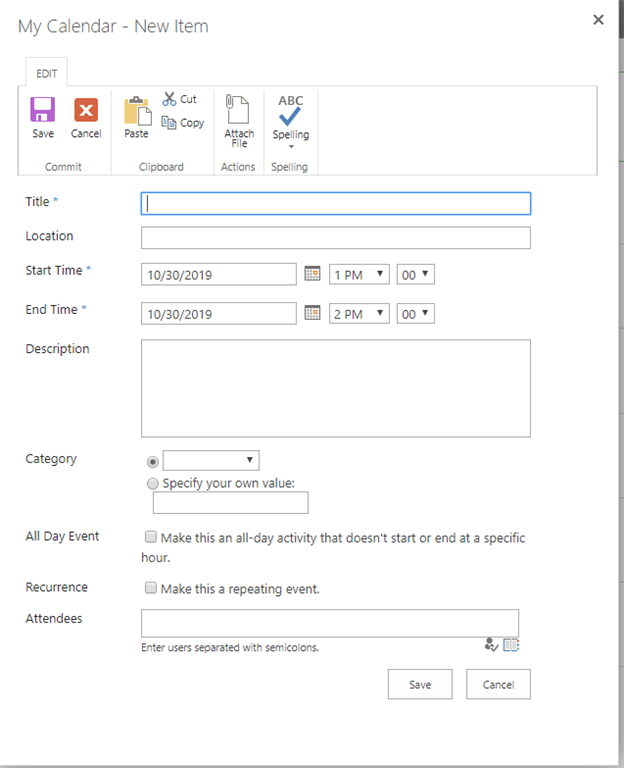
Click on Add event in calender view and we can see the below form,
So that’s it, we have seen how to create calendar list using site design and add Attendees column. We explored the below use case in this article.
- How to create custom content type
- How to add site column to custom content type
- How to create Calendar list.
- How to add custom content type to Calendar list(this can be added to any list)
- How to remove default Event content type from Calendar list.
Hope you enjoyed reading…Happy coding..!!!
Note – This article was originally published at this link.
(Visited 80 times, 1 visits today)


 Users Today : 236
 Users Yesterday : 329
 This Month : 3388
 This Year : 62368
 Total Users : 492696
 Views Today : 408
 Total views : 1110524